line-heightAdd Staffs

The Staffs highlights the expertise, roles, and qualifications of the surgical team. Presenting detailed staff profiles helps patients understand who will be involved in their care and builds confidence in your medical services.

WordPress Dashboard > Staffs > Add Staffs

Use this section to add and configure a new service item on your website.


Staff Settings

Field
Description

Staffs Icon

Upload or select an icon that visually represents the staffs.


Edit with Elementor (Visual Editor)

To visually design your service page using drag-and-drop:

  • After saving the service as a Draft or Publishing it,

  • Click the “Edit with Elementor” button at the top of the page.

  • Use Elementor widgets to customize the layout, add images, text, icons, and more.

  • Click Update once you are done designing the service page.

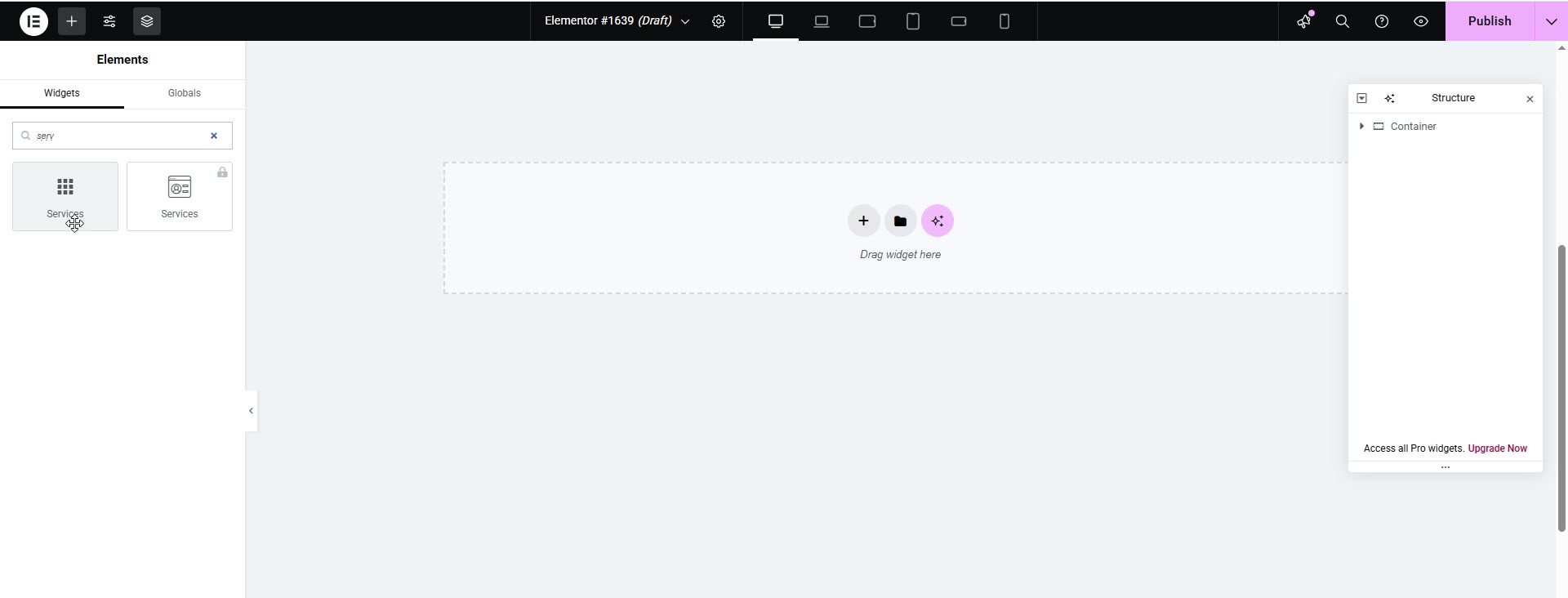
Add Staffs (via Elementor Widget)

While using Elementor, you may find a custom “Add Staffs” widget provided by the theme. This widget allows dynamic display of services.

Widget Settings

Field
Description

Staffs Type

Choose the style or layout type for the staffs (e.g., Type 1, Type 2 and etc ).

Show Price

Enable or disable price visibility in the layout.

Button Text

Customize the CTA button text (e.g., “Book Now”, “Learn More”).


Staffs Listing Settings

These settings control how staffs are queried and displayed on the front end:

Field
Description

Query Staffs By

Choose how to load services: - From Category - By Specific IDs - All Staffs

Staffs Count

Set the number of staffs to display (e.g., 3, 6, 9).

Pagination

Enable pagination to allow browsing through multiple pages of staffs.

Saving the Staffs

Once all the details are filled in:

  • Review the information.

  • Click the "Publish" or "Update" button to save your new staffs.

Last updated