# How to Install theme via FTP

**How to Install a WordPress Theme via FTP**

If you prefer to install your WordPress theme manually via **FTP (File Transfer Protocol)**, follow these steps:

#### **Step 1: Download and Extract the Theme** <a href="#step-1-download-and-extract-the-theme" id="step-1-download-and-extract-the-theme"></a>

1. Log into your **ThemeForest** account.
2. Navigate to **Downloads** and find your purchased theme.
3. Click **Download** and select **"Installable WordPress file only"**.
4. Extract the **zarina.zip** file on your computer.

<figure><img src="https://3755961426-files.gitbook.io/~/files/v0/b/gitbook-x-prod.appspot.com/o/spaces%2FyC60HiPOFRx6XObbeOxv%2Fuploads%2Fwog9tKgDGA6Y3mauEVMv%2FZarina-install.jpg?alt=media&#x26;token=70747cb0-e45d-4b9d-a887-365766a662ee" alt=""><figcaption></figcaption></figure>

<figure><img src="https://3755961426-files.gitbook.io/~/files/v0/b/gitbook-x-prod.appspot.com/o/spaces%2FyC60HiPOFRx6XObbeOxv%2Fuploads%2F7FVX5fVp0fgyZzMTDpDq%2FZarina%20theme-license.png?alt=media&#x26;token=8a2012ec-6a14-4296-9114-355a28da3f74" alt=""><figcaption></figcaption></figure>

<figure><img src="https://3755961426-files.gitbook.io/~/files/v0/b/gitbook-x-prod.appspot.com/o/spaces%2FyC60HiPOFRx6XObbeOxv%2Fuploads%2FCbUEETzsjmcvThuDeSv3%2Fzarina%20theme-plugins.png?alt=media&#x26;token=1c3d31af-ef84-4e9e-b18d-8d6151983e3e" alt=""><figcaption></figcaption></figure>

#### **Step 2: Connect to Your Server via FTP** <a href="#step-2-connect-to-your-server-via-ftp" id="step-2-connect-to-your-server-via-ftp"></a>

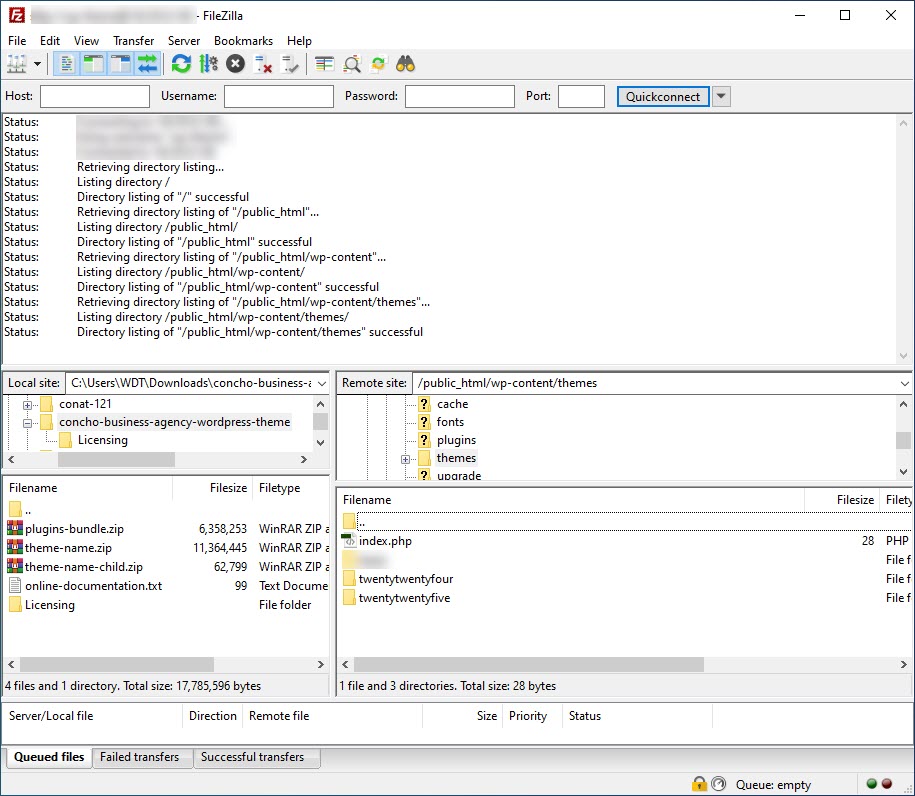
1. Download and install an **FTP client** (e.g., [FileZilla](https://filezilla-project.org/)).
2. Open FileZilla and enter your **FTP credentials** (provided by your hosting provider):
   * **Host:** Your website's FTP address
   * **Username & Password:** From your hosting provider
   * **Port:** Default is `21` for FTP or `22` for SFTP
3. Click **Quickconnect** to access your website’s files.

<figure><img src="https://content.gitbook.com/content/yC60HiPOFRx6XObbeOxv/blobs/nELnPlMd9JKAOl6BXgs6/ftp.jpg" alt=""><figcaption></figcaption></figure>

#### **Step 3: Upload the Theme Files** <a href="#step-3-upload-the-theme-files" id="step-3-upload-the-theme-files"></a>

1. In FileZilla, navigate to your website’s theme directory: **`/wp-content/themes/`**
2. On the left (local computer), locate the **extracted theme folder** (e.g., `theme-name/`).
3. Drag and drop the **entire theme folder** into the `/themes/` directory on the right.
4. Wait for the upload to complete.

#### **Step 4: Activate the Theme in WordPress** <a href="#step-4-activate-the-theme-in-wordpress" id="step-4-activate-the-theme-in-wordpress"></a>

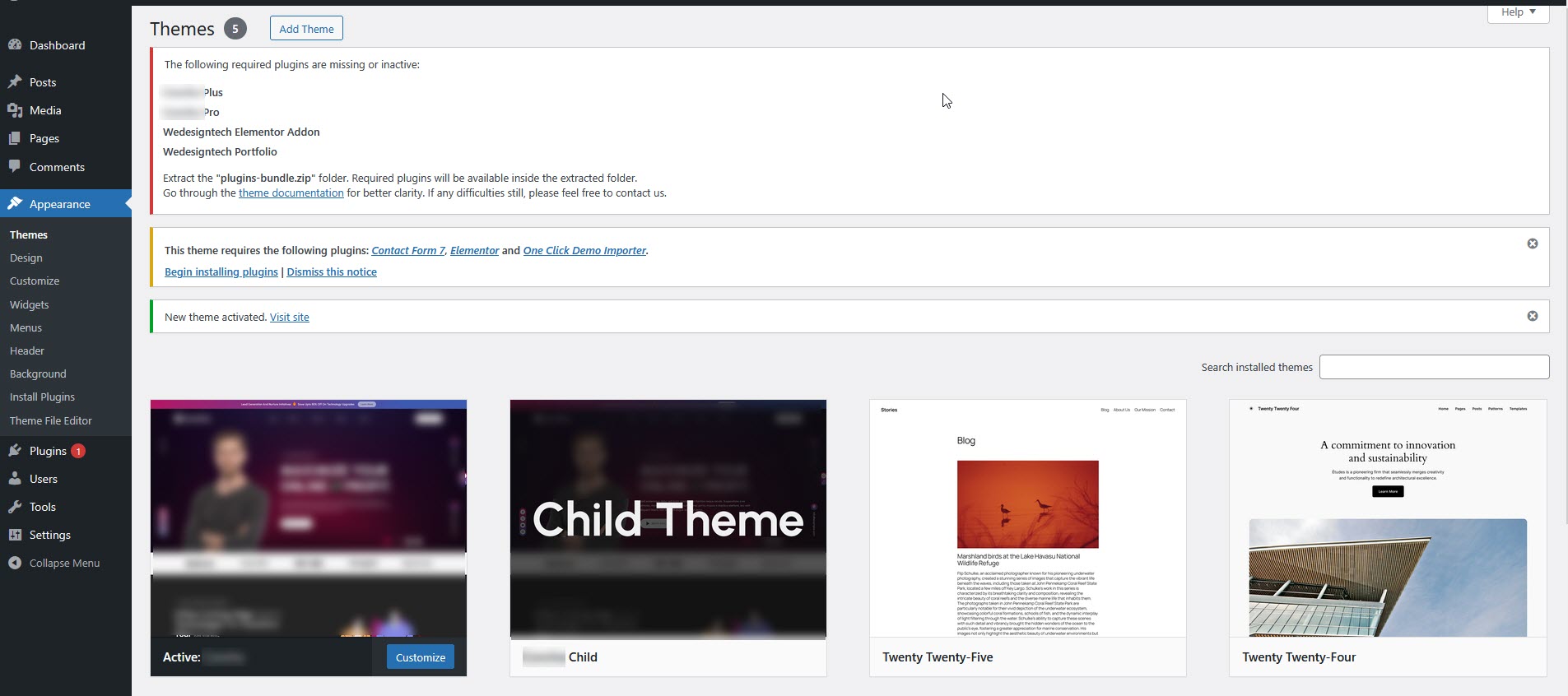
1. Log into your **WordPress dashboard**.
2. Go to **Appearance → Themes**.
3. Find the newly uploaded theme and click **Activate**.

<figure><img src="https://content.gitbook.com/content/yC60HiPOFRx6XObbeOxv/blobs/p5cCSUVZSlauPSpAZ2mC/concho-plugin-01.jpg" alt=""><figcaption></figcaption></figure>

<figure><img src="https://content.gitbook.com/content/yC60HiPOFRx6XObbeOxv/blobs/yejqfMofxVfBfZWfcZ8T/concho-plugin-02.jpg" alt=""><figcaption></figcaption></figure>

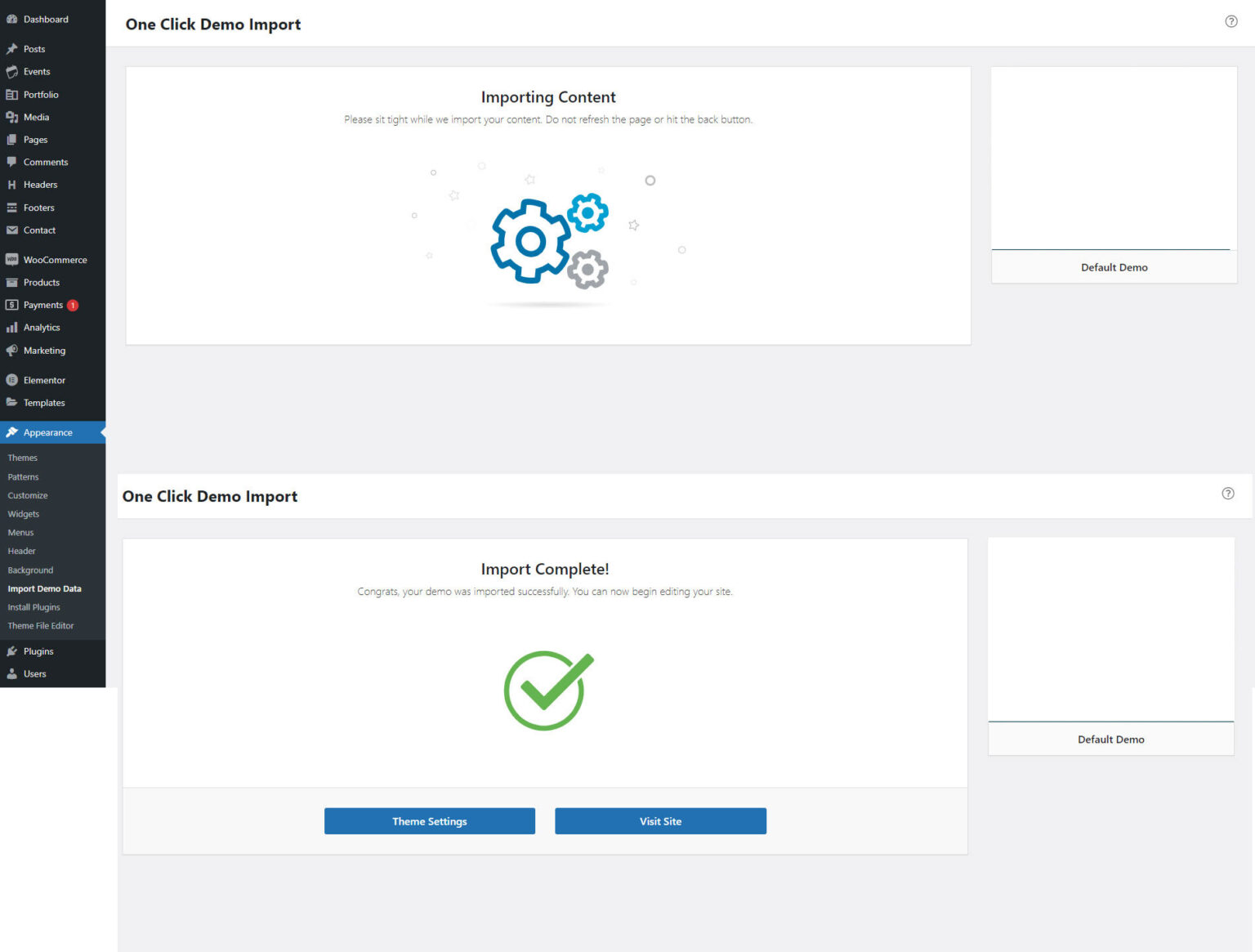
#### **Step 5:** Import Demo Content <a href="#step-5-import-demo-content" id="step-5-import-demo-content"></a>

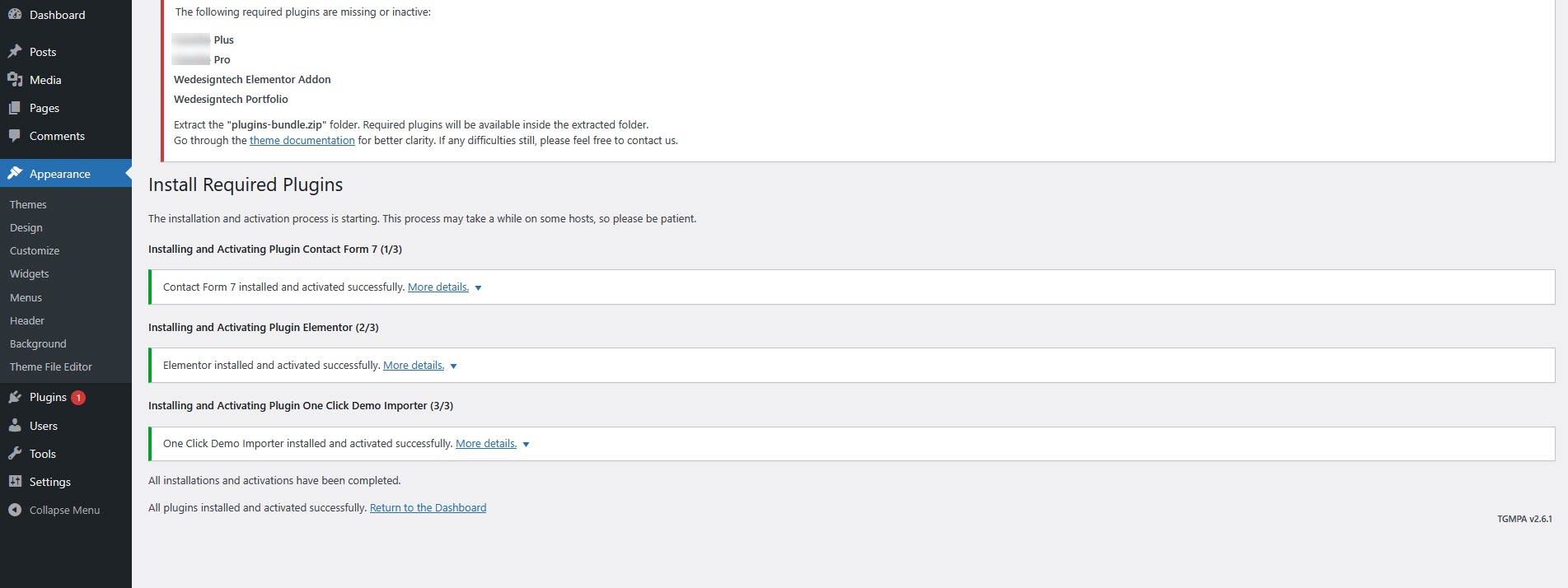
* Go to **Appearance → Install Plugins** in your WordPress dashboard.
* Install and activate the **One Click Demo Import** plugin (if not pre-installed).
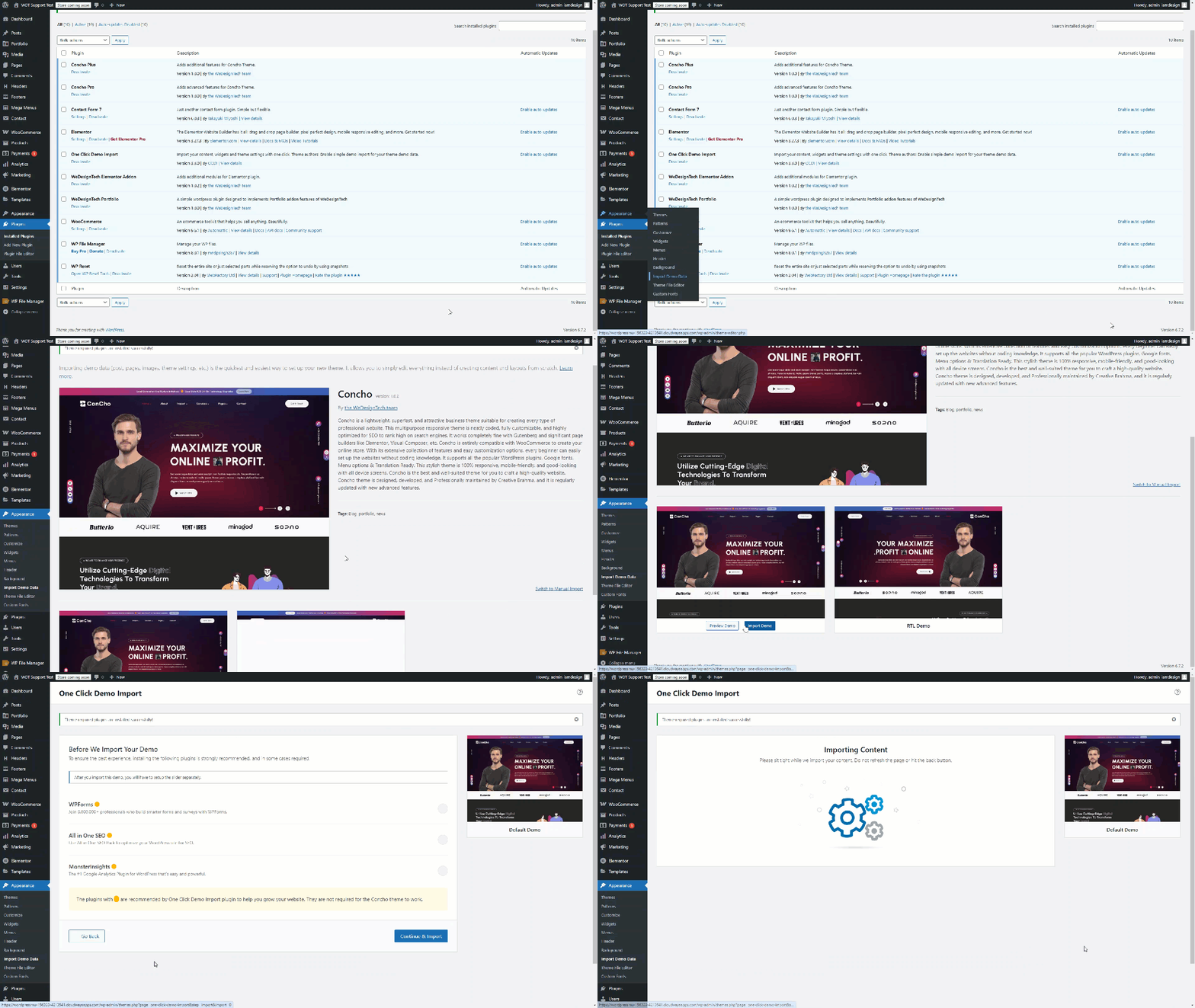
* Go to **Appearance → Import Demo Data**.
* You will see a list of available demo layouts.
* Choose the demo you want to import.
* Click the **"Import"** button.
* Wait for the process to complete (this may take a few minutes, depending on your server speed).

<figure><img src="https://content.gitbook.com/content/yC60HiPOFRx6XObbeOxv/blobs/GDKFLsWAyKPFq3M8zNaT/image.gif" alt=""><figcaption></figcaption></figure>

<figure><img src="https://content.gitbook.com/content/yC60HiPOFRx6XObbeOxv/blobs/Dq4suGFr1fuffWMBUKMM/demo-3.jpg" alt=""><figcaption></figcaption></figure>