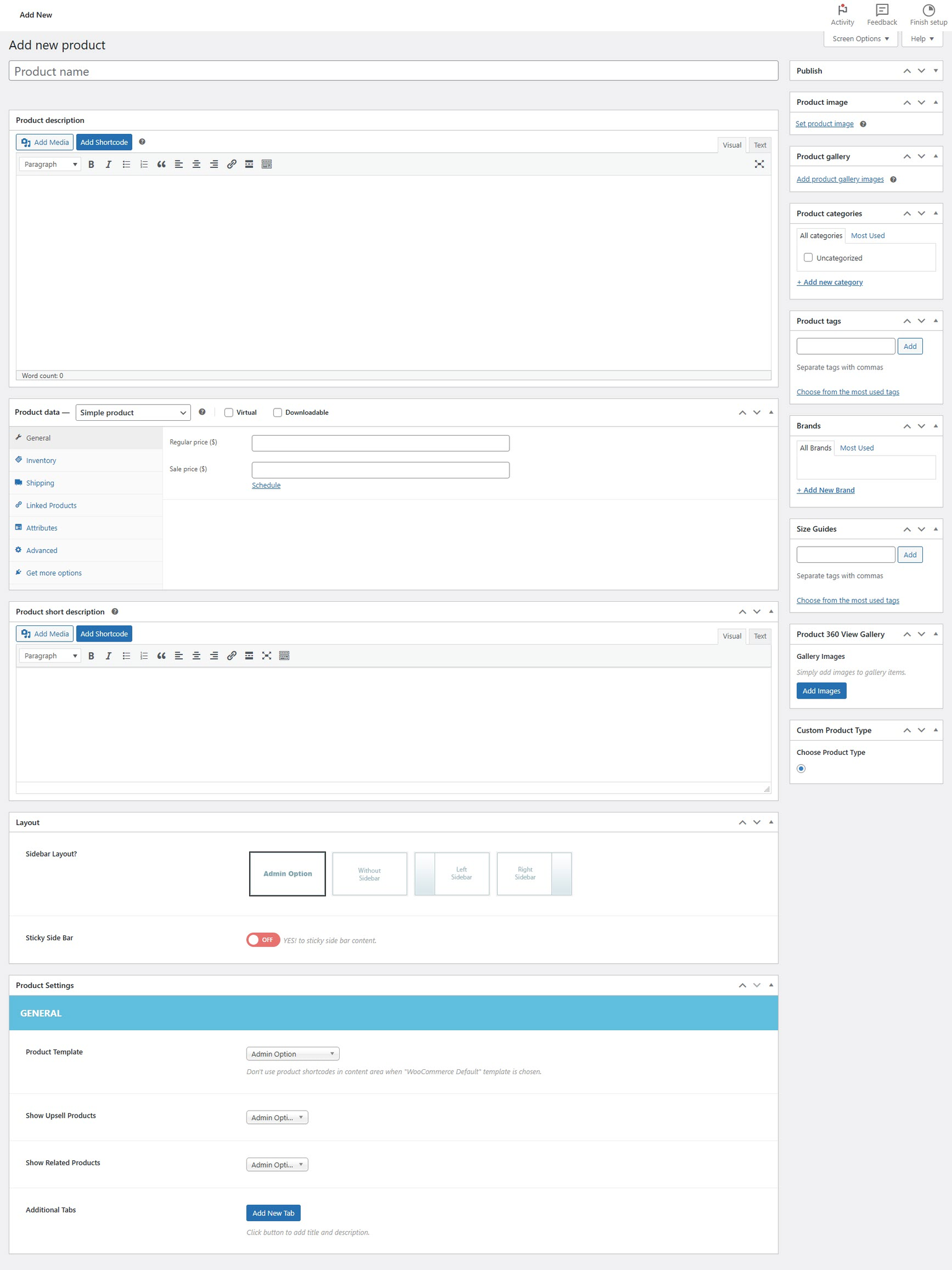
# How to Create a Product in WooCommerce
{% hint style="success" %}
* Log in to your WordPress admin panel.
* Go to **Products** > **Add Product** from the WordPress Admin sidebar.
{% endhint %}
#### **Enter Product Details**
**Step 1: Product Name & Description**
* Enter the **product name** at the top.
* In the **post content field**, provide a detailed **product description** including features, specifications, and benefits.
**Step 2: Product Data Section**
Fill in the **Product Data** box with the necessary details:
* **General**: Set the **regular price** and **sale price** (if applicable).
* **Inventory**:
* Enter the **SKU** (Stock Keeping Unit).
* Manage stock levels by enabling **Stock Management**.
* **Shipping**:
* Define **weight, dimensions**, and **shipping class** (if applicable).
* **Linked Products**:
* Add **upsells** (recommended alternatives).
* Add **cross-sells** (related products to show in the cart).
* **Attributes**:
* Add custom attributes like **color, size, or material**.
* **Variations** (for variable products):
* Create product variations (e.g., different sizes or colors) and set individual prices.
**Step 3: Product Short Description**
* Enter a **brief product summary** in the **Product Short Description** section. This appears next to the product image.
**Product Images & Gallery**
* Upload a **main product image** under **Product Image**.
* Add multiple images to the **Product Gallery** for additional views.
**Product Categories & Tags**
* Assign the product to relevant **categories** for easy navigation.
* Add **tags** to improve search and filtering.
**Step 4: Publish the Product**
* Click **Publish** to make the product live on your store.
* The product will now appear on your **Shop** page and be available for purchase.
For further customization, visit **WooCommerce** > **Settings** to configure advanced options.
[Woocommerce Products](https://woocommerce.com/document/managing-products/add-product/): WooCommerce Online documentation created by WooCommerce.