# Portfolio Setting
#### **How to Configure Portfolio Settings in WordPress**
To set up and manage your portfolio properly, ensure that the **WeDesignTech Portfolio Addon** is installed and activated. Below are the key configuration settings for portfolios:
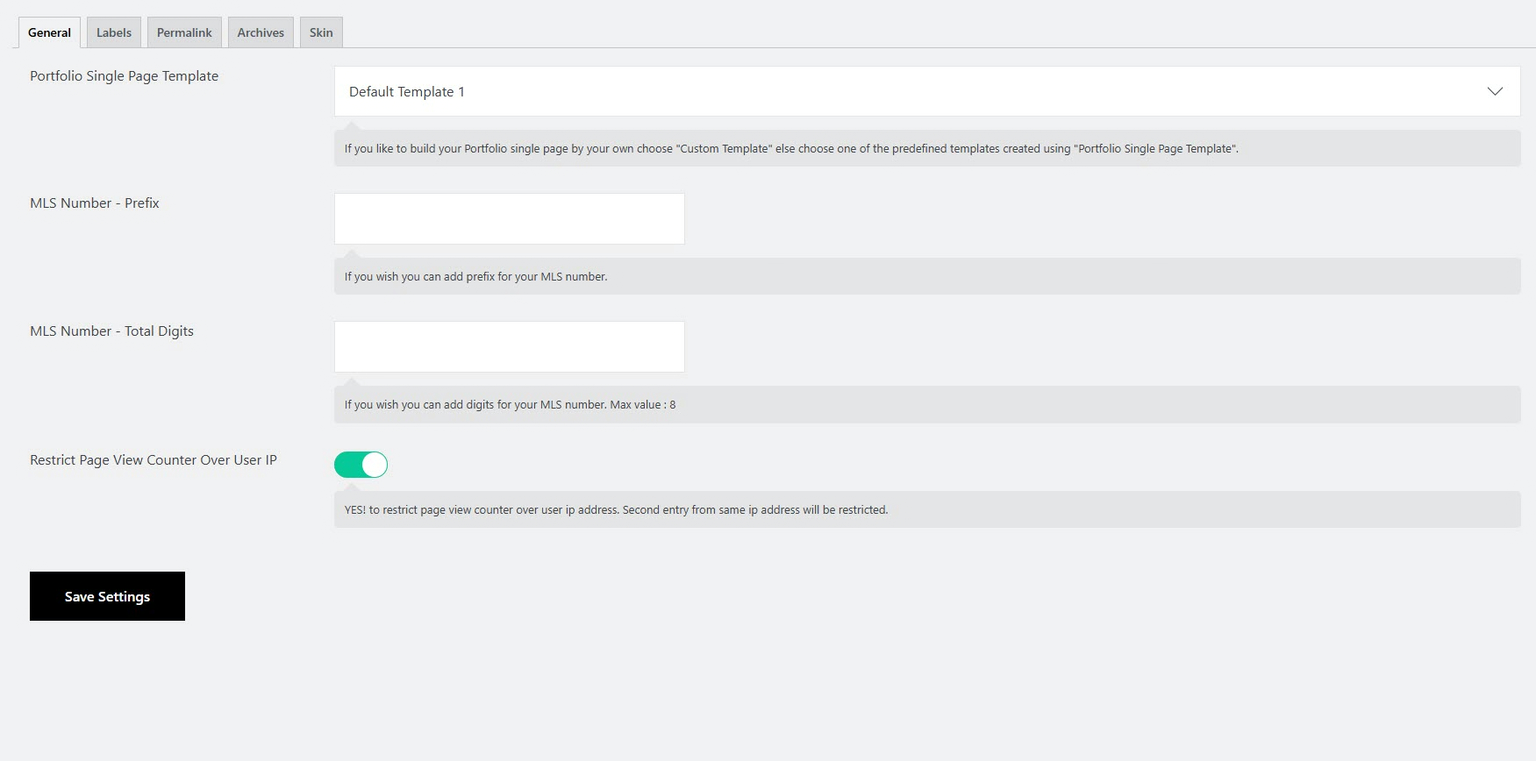
#### **1. General Settings**
* **Portfolio Single Page Template**:
* Select a layout for your portfolio single page.
* Choose [**Custom Template**](https://wedesignthemes.gitbook.io/conchowp-documentation/portfolio/create-a-portfolio-post/portfolio-detail-page-template-options) to design your own layout manually. Otherwise, select from the available predefined templates to quickly set up your portfolio page.
* **MLS Number - Prefix**: (Optional) Add a prefix for your MLS number.
* **MLS Number - Total Digits**: Define the number of digits (Max: **8**).
* **Restrict Page View Counter Over User IP**:
* Enable this to prevent multiple views from the same IP from being counted.
**Click Save Settings**
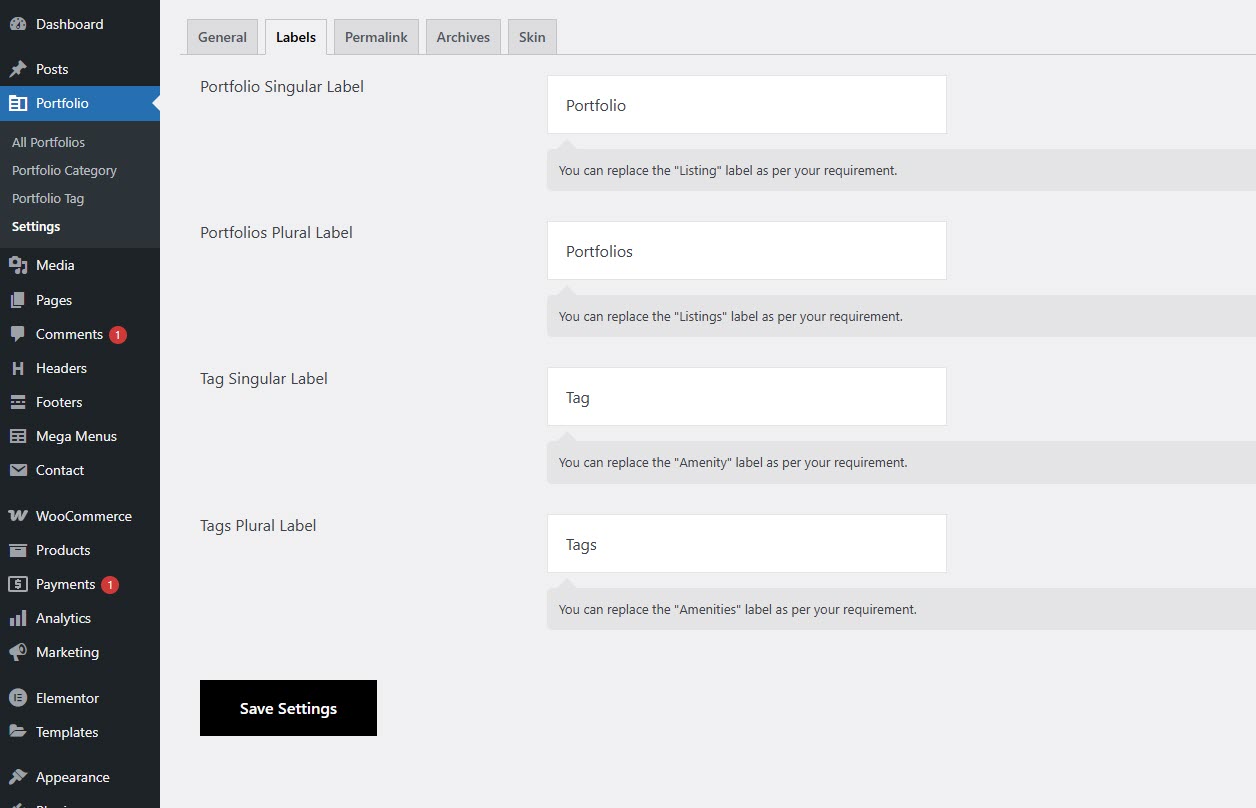
#### **2. Label Settings**
* Customize labels based on your site's requirements:
* **Portfolio Singular Label**: Change "Portfolio" to any custom term (e.g., "Project").
* **Portfolio Plural Label**: Change "Portfolios" to a custom term (e.g., "Projects").
* **Tag Singular Label**: Change "Tag" (e.g., "Amenity").
* **Tags Plural Label**: Change "Tags" (e.g., "Amenities").
**Click Save Settings**
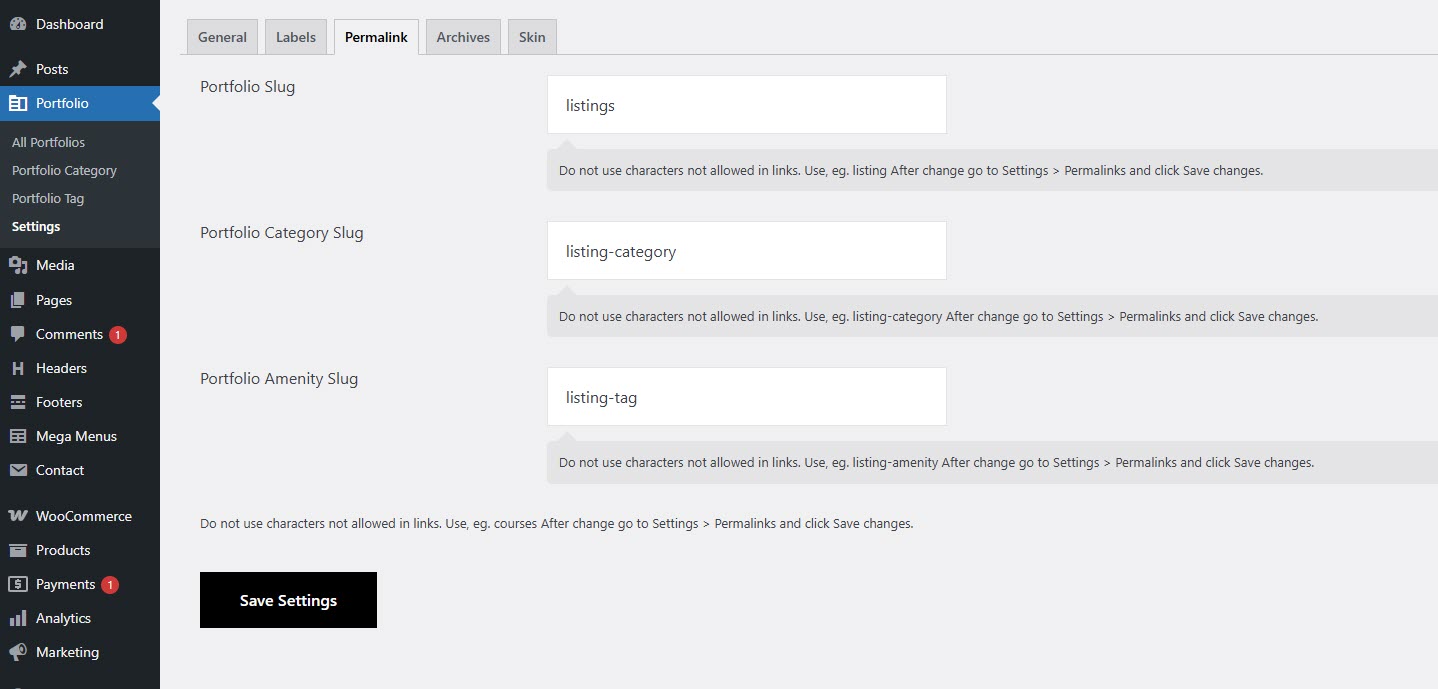
#### **3. Permalink Settings**
* Customize URLs for your portfolio pages:
* **Portfolio Slug**: Change "listings" to a preferred term.
* **Portfolio Category Slug**: Change "listing-category" accordingly.
* **Portfolio Amenity Slug**: Update "listing-tag" if needed.
* After updating, go to **Settings > Permalinks** and click **Save Changes**.
**Click Save Settings**
#### **5. Skin Settings**
* **Primary Color**: Choose the primary color for the portfolio module.
* **Secondary Color**: Select a secondary color.
* **Tertiary Color**: Set the tertiary color.
**Click Save Settings**
**Final Steps**
Once you’ve configured these settings, make sure to **refresh permalinks** and preview your portfolio pages to ensure everything is working correctly.