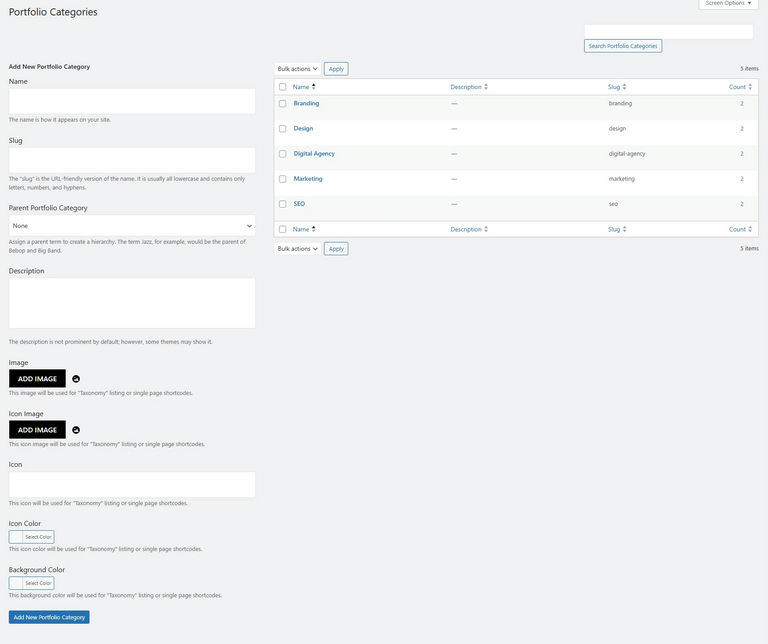
# Portfolio Category
#### **How to Add a New Portfolio Category in WordPress**
Organizing your portfolio items with categories makes it easier for visitors to navigate your work. Follow these steps to add a new portfolio category:
#### **1. Navigate to Portfolio Categories**
* Go to **WordPress Dashboard** → **Portfolio** → **Portfolio Category**
**2. Fill in the Category Details**
* **Name**: Enter the category name as you want it to appear on your site.
* **Slug**: Add a URL-friendly version of the category name (**lowercase, no spaces, use hyphens**).
* **Parent Portfolio Category**: If this is a subcategory, select a parent category. Otherwise, leave it as "None."
* **Description**: (Optional) Some themes may display this description.
#### **3. Customize Category Appearance**
* **Image**: Upload an image for taxonomy listing or single-page shortcodes.
* **Icon Image**: Upload an icon image for portfolio listings.
* **Icon**: Select an icon to represent the category.
* **Icon Color**: Choose a color for the icon.
* **Background Color**: Set a background color for the category display.
* Click **Add New Portfolio Category** to save your changes.