# Configure Portfolio Options
#### **How to Configure Portfolio Options**
The **Portfolio Options** section allows you to set up detailed information for each portfolio entry, including general settings, features, contact details, media, and business hours.
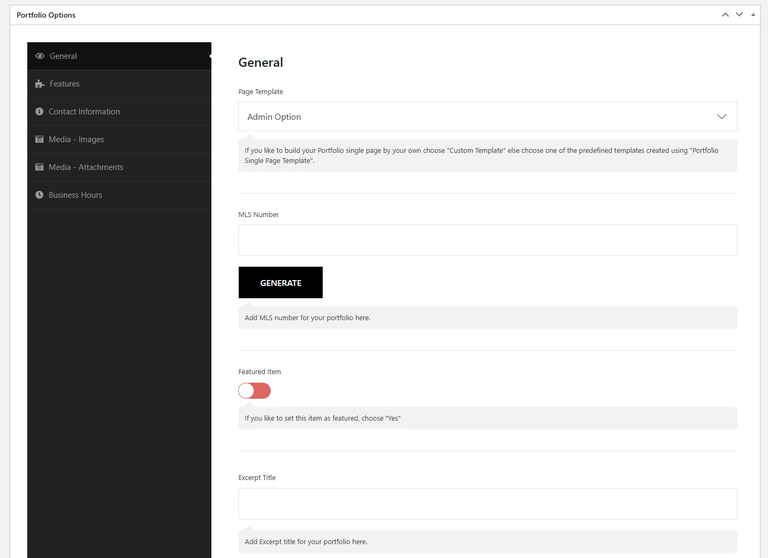
#### **General Options**
* **Page Template**:
* Select how your portfolio detail page should be displayed.
* To understand the different template options and setup steps, refer to: [Portfolio Single Page Template Setup](https://wedesignthemes.gitbook.io/conchowp-documentation/portfolio/create-a-portfolio-post/portfolio-detail-page-template-options)
* **MLS Number**: Add an MLS number for tracking purposes.
* **Featured Item**: Choose **Yes** if you want this portfolio item to be featured.
* **Excerpt Title**: Enter a short title or tagline for your portfolio.
**Click Save Changes**
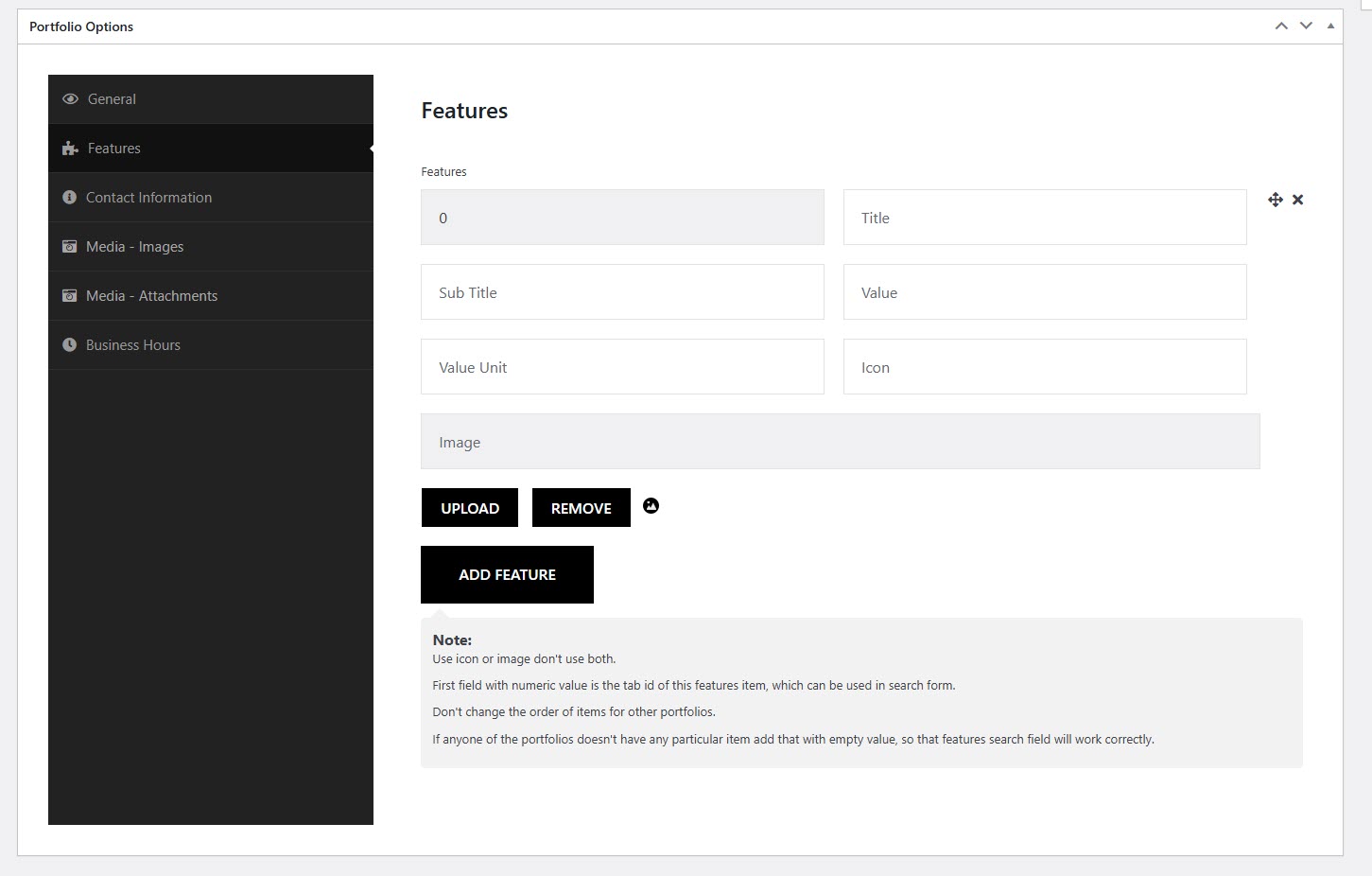
#### **Features Options**
* Click **Add Feature** to include key features of the portfolio item.
* **upload an icon or image as a URL in a feature section**
* Use **either** an icon or an image for each feature, but **not both**.
* The **first field (numeric value)** represents the tab ID, used in search forms.
* Do not change the order of items for other portfolios.
* If a portfolio lacks a specific feature, add it with an **empty value** to ensure the search field functions correctly.
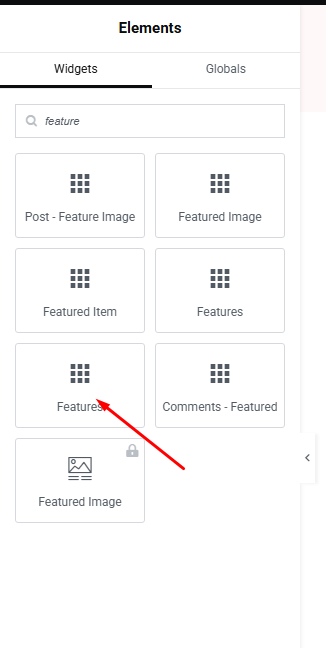
* To display the feature values in portfolio:
* **Navigate to the Portfolio item** you want to edit.
* **Click "Edit with Elementor."**
* **Add a Feature widget or section** to the layout.
* **Select the desired layout type** for how the feature values should be displayed.
* **Click "Publish"** to save the changes.
**Click Save Changes**
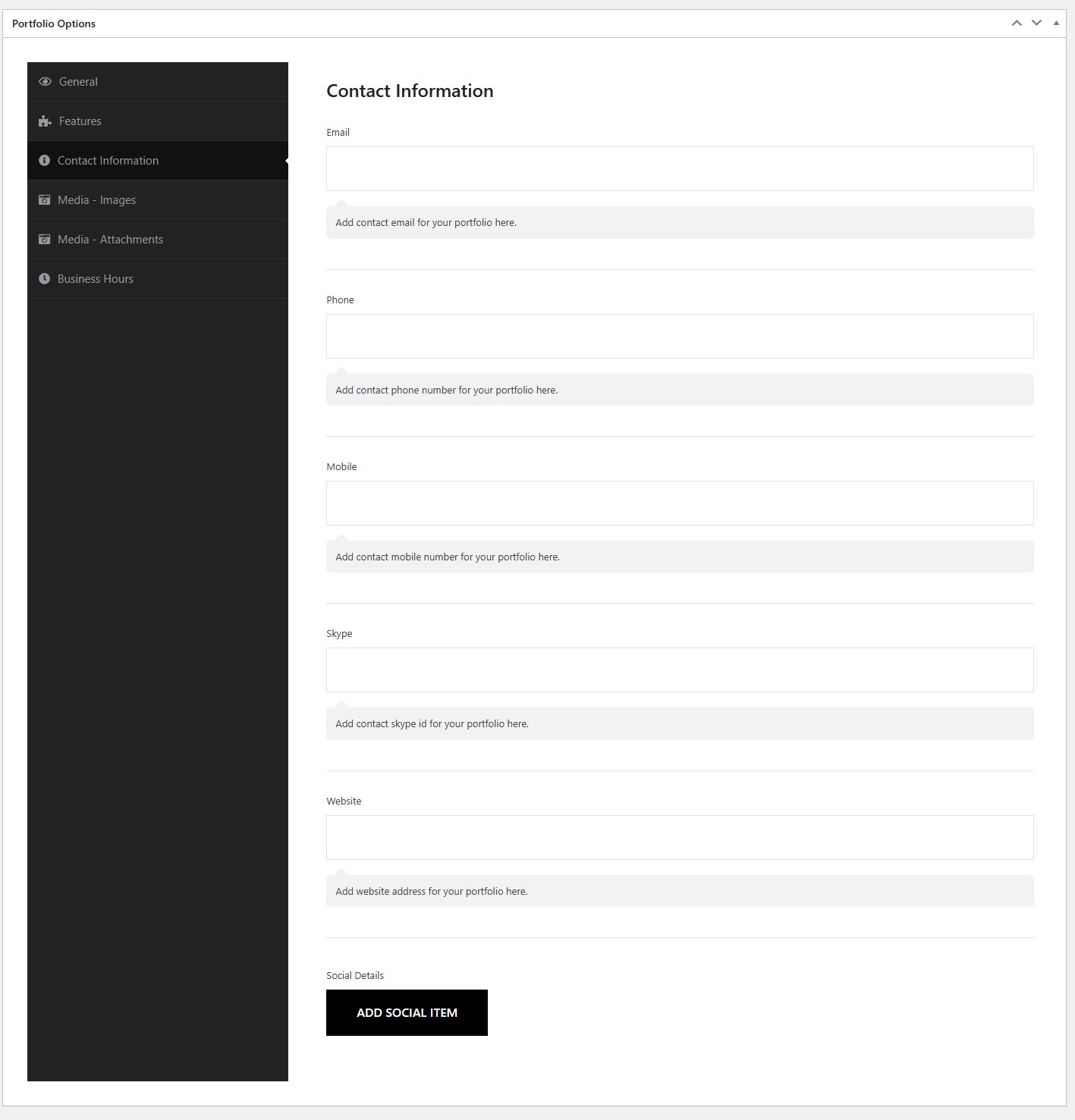
#### **Contact Information Options**
* **Email**: Enter the contact email for this portfolio.
* **Phone**: Add a phone number.
* **Mobile**: Enter a mobile number.
* **Skype**: Provide a Skype ID.
* **Website**: Include a website link.
* **Social Details**: Click **Add Social Item** to insert social media links.
**Click Save Changes**
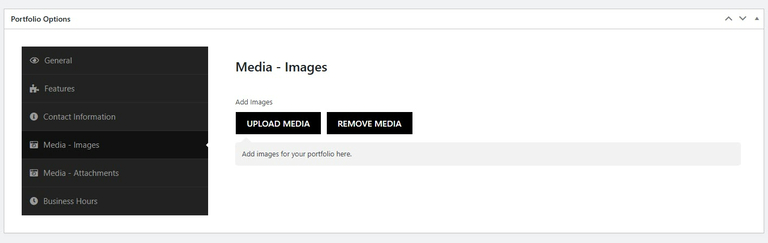
#### **Media - Images Options**
* Click **Upload Media** to add portfolio images.
* Click **Remove Media** to delete images if needed.
**Click Save Changes**
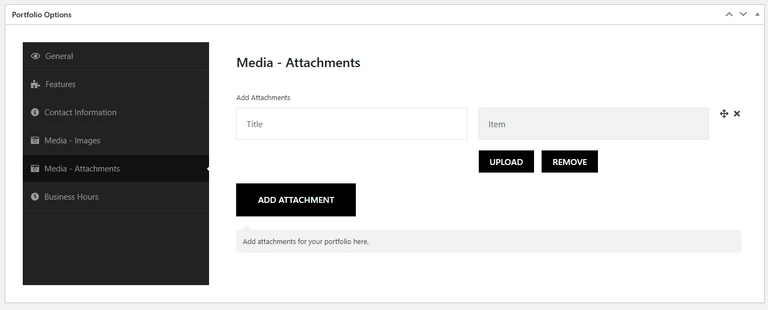
#### **Media - Attachments Options**
* Click **Add Attachment** to include downloadable files (e.g., PDFs, documents).
**Click Save Changes.**
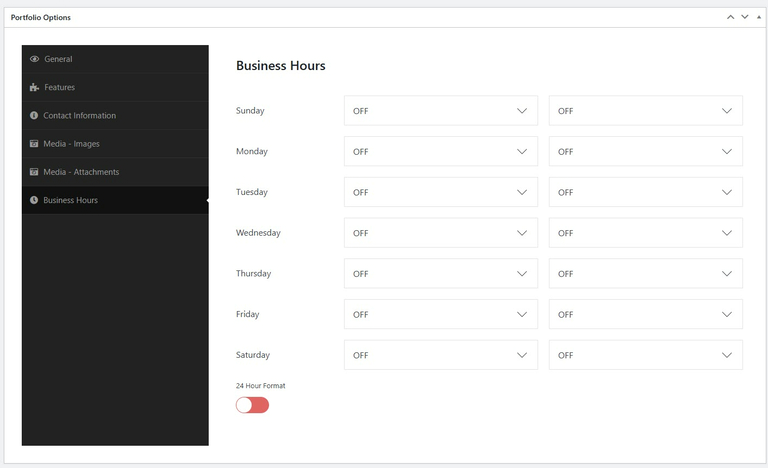
#### **Business Hours Options**
* Set the availability of the portfolio (e.g., business hours).
* Use the **24-hour format** for accuracy.
**Click Save Changes**
#### **Final Steps**
After configuring these settings, **preview your portfolio item** to ensure all details are displayed correctly.