# Newsletter Popup
{% hint style="success" %}
**Appearance > Customize > Site General> Popup**
{% endhint %}
* Click **Enable Popup.**
* Choose **Select Popup, Popup Display Condition, Exclude Specific Pages**.
#### How to disable the pop-up on the homepage
To disable the pop-up on the homepage of a WordPress site, follow these general steps:
{% hint style="success" %}
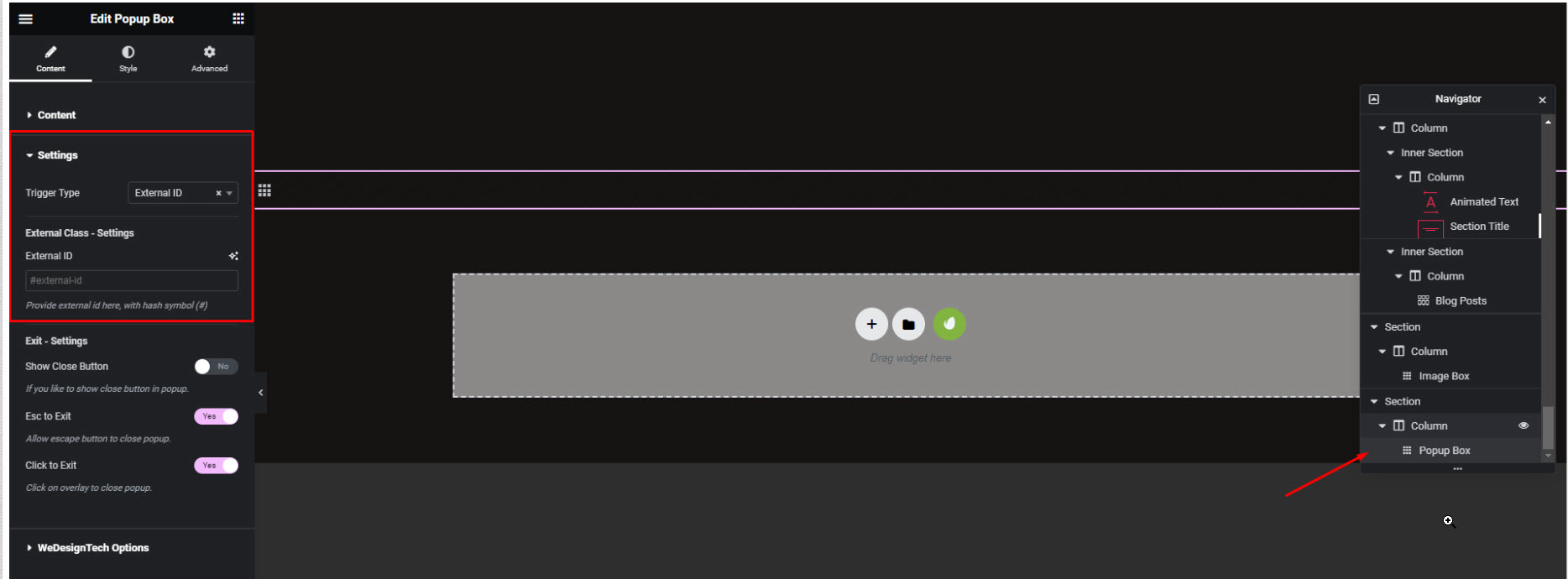
Navigate to **WordPress Dashboard > Pages > Select Homepage > Edit with Elementor**, then open the **Navigator > Popup Box > Settings**. Under **Trigger Type**, select **External Class/ID**, and **leave the text field empty.**
{% endhint %}
#### How to edit the pop-up on the homepage
To customize the pop-up on the homepage of a WordPress site, follow these general steps:
{% hint style="success" %}
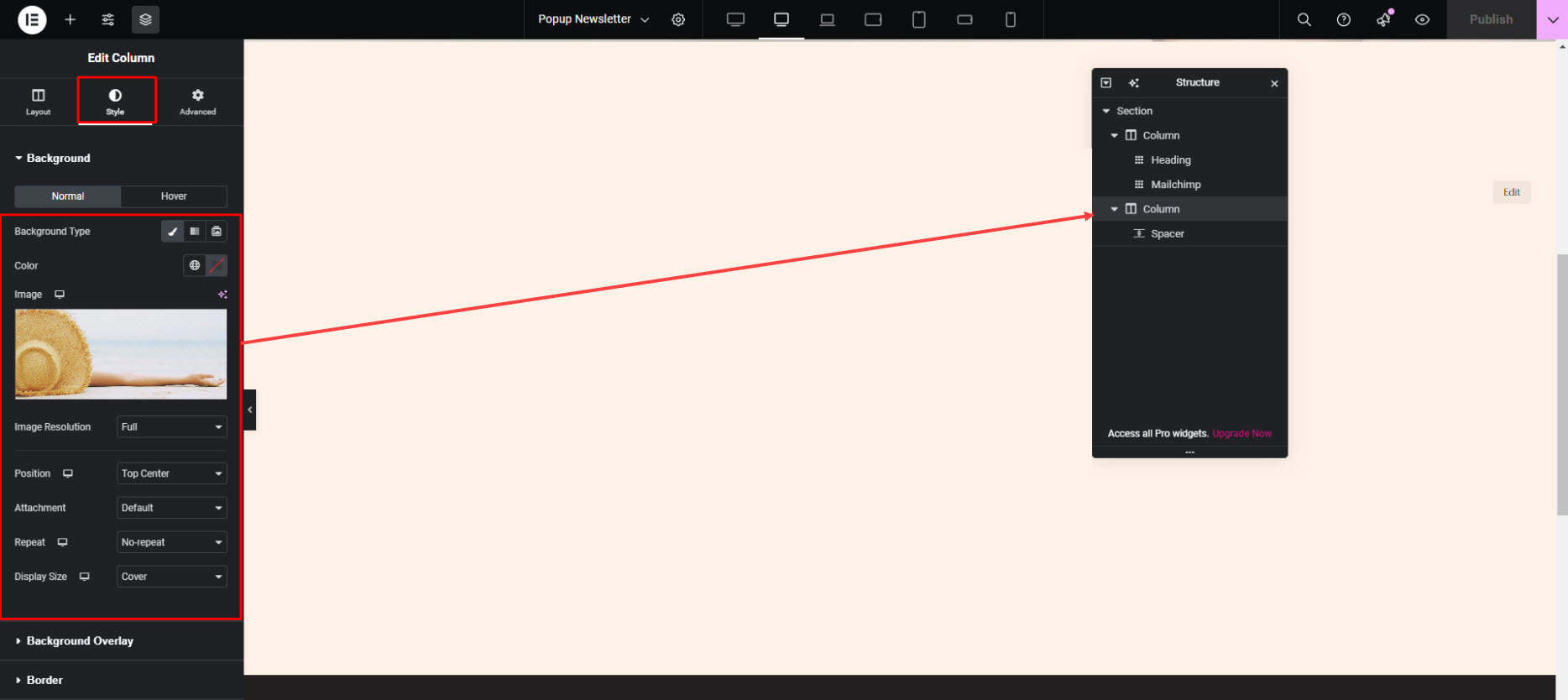
**Templates > Saved Templates > Newsletter Popup template > Edit with Elementor**, then click on the **Column** containing the image, go to the **Style** tab, and update the **Background** image as needed.
{% endhint %}
.gif?alt=media&token=003af736-77fa-477a-b00c-1a683401e6ea)